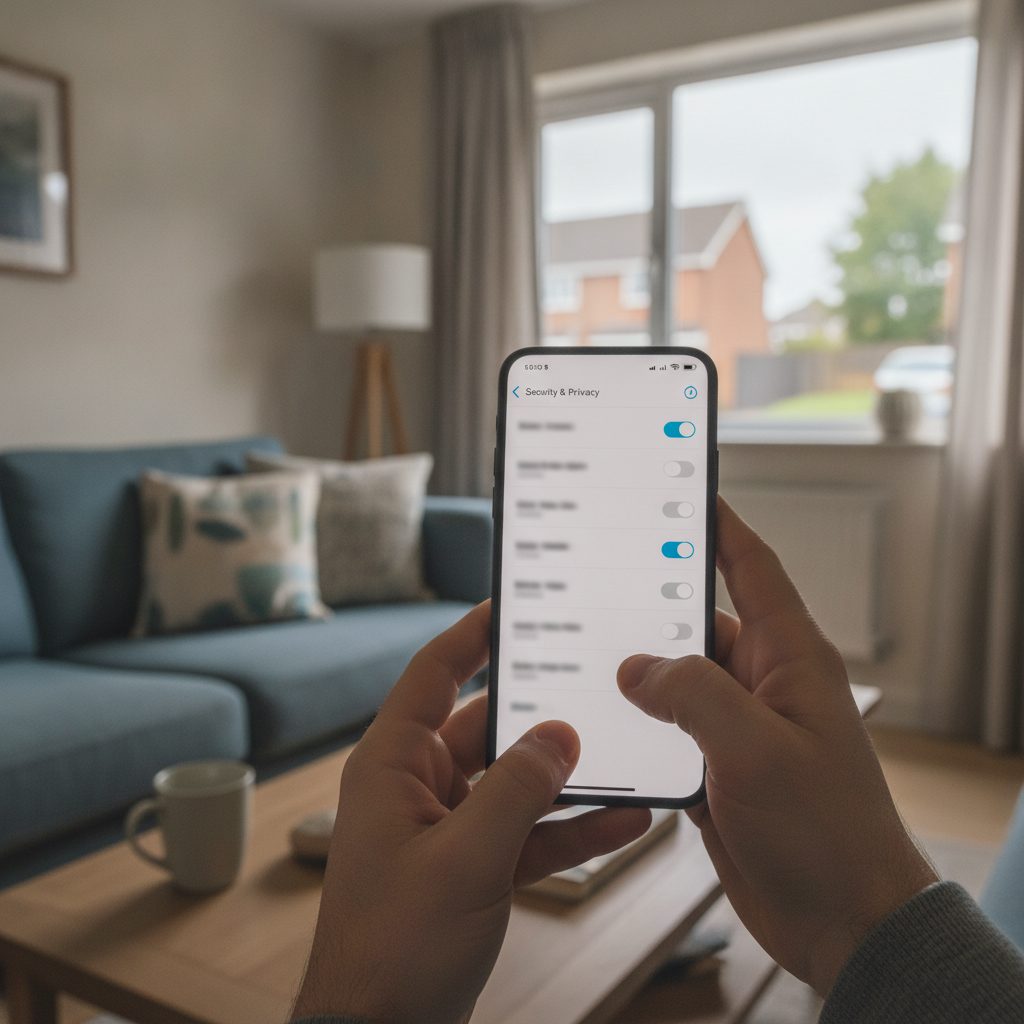
Signs your iPhone might be compromised
Apple built iOS as a walled garden, which makes traditional viruses rare on unmodified devices. However, security risks still appear through malicious configuration profiles, spyware, phishing attacks, and unauthorised access to linked Apple accounts. Spotting problems early prevents financial loss and personal data leaks.
Look out for these common warning signs on your device:
- Sudden battery drain: Background monitoring tools and hidden data transmissions consume significant power, even when the handset sits idle.
- Unexplained data usage: A sharp rise in cellular data usage often indicates that files, audio, or location logs are uploading to remote servers.
- Persistent overheating: Handsets running background processes often feel warm to the touch without active use.
- Unfamiliar apps or web bookmarks: New icons you did not install from the App Store can indicate side-loaded programmes or profile installations.
- Strange pop-ups or calendar spam: Calendar invites containing suspicious links frequently try to install malicious subscription profiles.
Checking configuration profiles and mobile device management
Configuration profiles and Mobile Device Management (MDM) tools allow administrators to change system settings, inspect network traffic, and install software remotely. While legitimate businesses and schools use MDM to manage fleet hardware, attackers occasionally trick users into installing profiles to intercept web traffic.
To check whether your iPhone contains any installed profiles, follow these steps:
- Open the Settings app.
- Tap General.
- Scroll down to VPN & Device Management.
If you do not see a "Profiles" or "Device Management" section beneath the VPN menu, your phone has no configuration profiles installed. If a profile is listed and you do not recognise the organisation that issued it, tap the profile and select Remove Profile. You will need your device passcode to confirm the removal.
Reviewing app permissions and tracking access
Apps often request access to hardware features like the camera, microphone, and location services during initial setup. Over time, outdated or untrusted applications may retain access to sensitive data without your active awareness.
Apple includes built-in privacy tools to audit which apps access your data. Go to Settings > Privacy & Security to review access permissions by category:
- Location Services: Check which apps have access set to "Always". Change non-essential apps to "While Using the App" or "Never".
- Microphone and Camera: Disable access for any app that does not require direct recording capabilities to function.
- Tracking: Disable "Allow Apps to Request to Track" if you want to block cross-app advertising identifiers across your device.
You should also scroll to the bottom of the Privacy & Security menu and turn on the App Privacy Report. This feature records a 7-day log of how often apps access your sensors and which network domains they contact.
Verifying iOS integrity and jailbreak status
Jailbreaking removes the security sandboxing built into iOS, leaving the device vulnerable to unsigned malware and remote access tools. If you bought a pre-owned iPhone or left your device unattended with someone else, checking for jailbreak indicators is a sensible precaution.
Swipe down on your Home Screen to open Spotlight search and look for package managers such as Cydia, Sileo, Zebra, or Unc0ver. If these apps appear without your knowledge, the operating system has been modified.
To ensure your operating system has official integrity, verify that you are running the latest official version of iOS by visiting Settings > General > Software Update. Installing the latest update overwrites modified system files and closes known security flaws.
Checking hardware legitimacy, blacklist, and lock status
Safety is not just about software threats; it also involves hardware legitimacy. Second-hand iPhones might be reported lost or stolen, tied to an outstanding unpaid contract, or blocked by national carrier registries.
Every handset carries a unique 15-digit International Mobile Equipment Identity number. You can find this by dialling *#06# in the Phone app or going to Settings > General > About.
Using a free checker like Device Decoded lets you look up specifications, model numbers, and carrier details. You can run a dedicated iPhone IMEI check to confirm whether the device has an active blacklist record or activation lock flag. A blacklisted device can be blocked from UK mobile networks at any time.
Auditing your Apple Account and iCloud access
An attacker does not need physical access to your phone if they compromise your Apple Account. Unauthorised access to your iCloud account allows third parties to track location via Find My, read synced Messages, and view Photos.
Review your account security with these steps:
- Open Settings and tap your name at the very top.
- Scroll to the bottom of the screen to view the list of trusted devices currently logged into your account.
- Tap any device you do not recognise or no longer own, then select Remove from Account.
- Tap Sign-In & Security, change your password, and verify that Two-Factor Authentication is active with your current mobile phone number.
Steps to take if you find a security risk
If you discover suspicious profiles, unexpected device tracking, or persistent system anomalies that settings changes cannot resolve, perform a full system restore.
- Back up important documents and photos to a trusted cloud service or an encrypted local computer backup.
- Go to Settings > General > Transfer or Reset iPhone.
- Select Erase All Content and Settings.
- When setting up the phone again, choose to set it up as a new device rather than restoring from an older backup, which might reinstall the malicious profile or corrupted application.