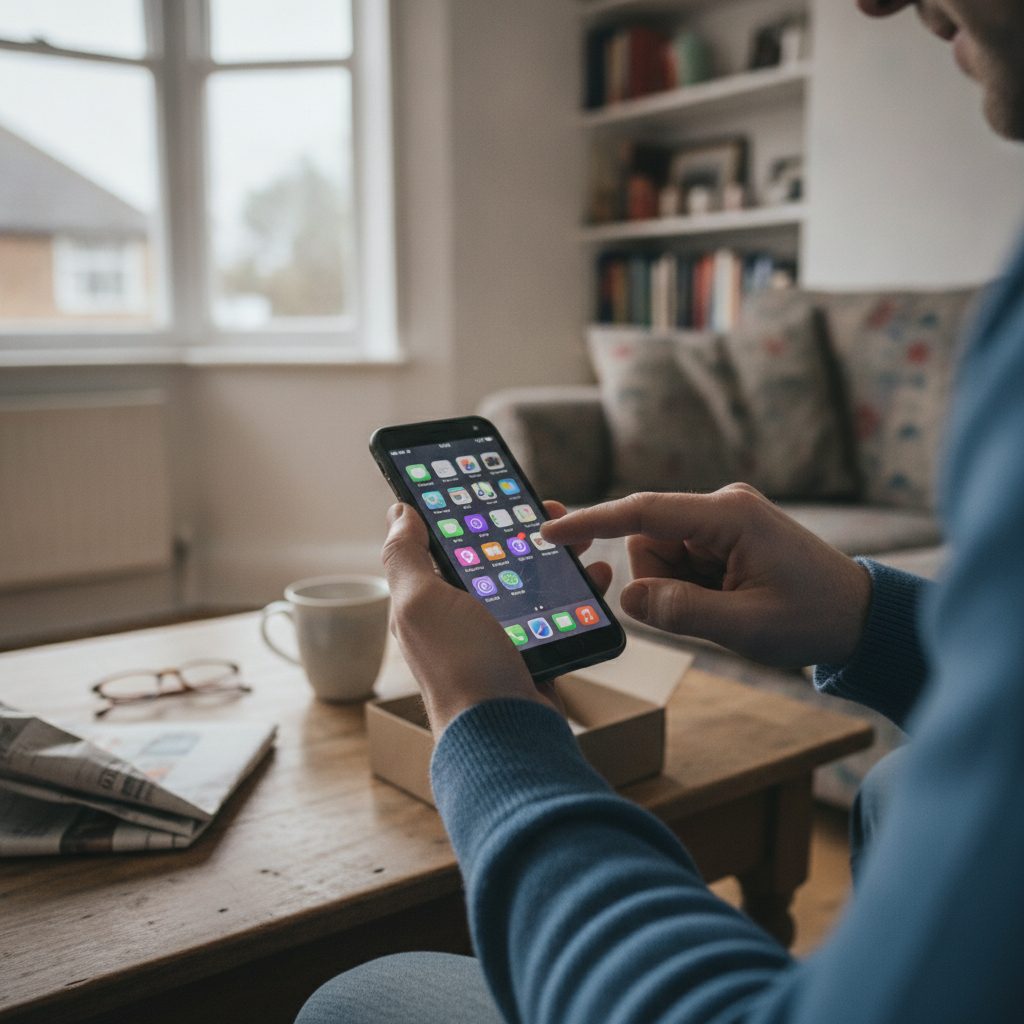
Why you must check a used iPhone
The UK second-hand smartphone market is thriving on platforms like eBay, Facebook Marketplace, and Gumtree. While most transactions go smoothly, buying from private sellers carries inherent risks. A handset might appear pristine on the outside while hiding water damage, an aftermarket screen, or an active network blacklist caused by an unpaid contract.
Once money changes hands in a private sale, getting a refund is nearly impossible. Taking ten minutes to run through a standard set of checks protects you from buying a bricked handset or inheriting someone else's debts. You do not need technical expertise to spot major red flags; you simply need a clear process and a few freely available verification tools.
How to find the IMEI and serial number
The International Mobile Equipment Identity (IMEI) is a 15-digit number unique to your specific device. You need this number to verify the history of the phone against national databases. You can locate the IMEI and the serial number using three reliable methods.
First, open the Phone app and dial *#06#. A screen will immediately pop up displaying the device's IMEI and EID numbers. This is the most tamper-proof method because it reads directly from the baseband hardware.
Second, open the Settings app on the handset. Go to Settings > General > About. Scroll down to see both the Serial Number and the Primary IMEI. If the phone supports dual SIM or eSIM, you will see an IMEI2 listed as well.
Third, check the physical hardware. On an iPhone 6s through the iPhone 13 series, the IMEI is etched directly onto the SIM card tray in tiny lettering. On an iPhone 6 or older, it is stamped onto the rear casing. Always compare the physical number to the digital number shown in the Settings menu. If they do not match, the device has likely undergone housing replacement or motherboard swapping.
Running an online IMEI and warranty check
Once you have the 15-digit number, you can run a comprehensive history check online. Using a dedicated lookup tool lets you confirm the exact model specifications, warranty status, and whether the handset has been reported lost or stolen.
You can use the free tool on Device Decoded to pull the phone's factory specifications, production details, and model identity. For focused Apple verification, the dedicated iPhone IMEI check tool provides quick insight into warranty coverage and device status without requiring an account.
An online check helps you confirm three vital points:
- Model authenticity: Cloned devices often mimic iOS visually, but their IMEI numbers resolve to generic Android chipsets or outdated handsets.
- Official coverage: You can see if AppleCare+ or the original one-year Apple warranty remains active.
- Blacklist status: UK carriers share a central database (GSMA) of barred handsets. A blacklisted phone will not connect to EE, Vodafone, Three, or O2.
Inspecting iCloud and Activation Lock
Activation Lock is Apple's primary anti-theft mechanism. If the previous owner remains logged into their Apple Account, you will never be able to restore the device, update the software, or link your own Apple ID. There is no legitimate software workaround to bypass this security layer.
To test for Activation Lock, open Settings. If you see a person's name at the very top of the main menu, an Apple ID is still signed in. Ask the seller to sign out in front of you. They must go to Settings > [User Name] > Sign Out and enter their Apple ID password to disable Find My.
The definitive test is performing a factory reset before handing over payment. Go to Settings > General > Transfer or Reset iPhone > Erase All Content and Settings. Once the reset finishes, step through the initial setup screens until you reach the home screen. If the phone asks for a previous owner's email address and password during setup, do not complete the purchase.
Physical and hardware checklist
Take your time inspecting the exterior and physical components. Cosmetic scratches are normal on used devices, but specific hardware flaws signal expensive internal damage.
| Component | What to check | Potential issue |
|---|---|---|
| Liquid Contact Indicator | Look inside SIM tray slot with a torch | Red or pink colour indicates water ingress |
| True Tone | Long-press brightness slider in Control Centre | Missing toggle indicates uncalibrated replacement screen |
| Face ID / Touch ID | Register your face or fingerprint in Settings | Damaged sensor modules cannot be easily repaired |
| Microphones & Speakers | Record a voice memo and play it back on speaker | Muffled audio indicates blocked grilles or blown drivers |
| Cameras | Test 0.5x, 1x, 3x, and 5x zoom modes in Camera app | Rattling or black screens point to broken optical stabilisation |
| Charging Port | Plug into a power bank, wiggle cable gently | Intermittent charging signals worn pins or compacted lint |
Water damage is particularly dangerous because corrosion spreads over weeks. Take out the SIM tray and shine a torch into the slot. If you see a red or pink strip instead of white or silver, water has entered the chassis. Avoid buying water-damaged phones under any circumstances.
Testing battery health and parts history
Lithium-ion batteries degrade with every charge cycle. Apple provides built-in diagnostics that give clear visibility into battery condition and replacement history.
Go to Settings > Battery > Battery Health & Charging. Look at the Maximum Capacity percentage. A new phone sits at 100%. Anything between 85% to 100% indicates healthy performance. If the capacity falls below 80%, iOS will display a service warning indicating the battery requires replacement, which costs roughly £65 to £105 depending on the model.
On handsets running iOS 15.2 or later, look at Settings > General > About. If any components have been swapped, an Apple Parts and Service History section appears beneath the serial number. Genuine parts will show an "Apple Genuine Part" badge, while cheap aftermarket displays or camera modules will show an "Unknown Part" warning. Non-genuine displays often suffer from poor touch response, washed-out colours, and disabled auto-brightness.
Carrier locks and UK network testing
Since December 2021, UK communications regulator Ofcom has banned mobile networks from selling locked phones. Any modern iPhone sold originally in the UK should work with any network SIM card out of the box.
However, older handsets or phones imported from the United States and other regions may still carry network restrictions. You can check network lock status directly in iOS. Go to Settings > General > About and look for Network Provider Lock (or Carrier Lock). If the device is unrestricted, it will state "No SIM restrictions".
Always bring your own active SIM card to an in-person collection. Insert the SIM, turn off Wi-Fi, and confirm three functions: make a regular phone call, send a text message, and load a webpage using mobile 4G or 5G data. If the phone refuses your SIM or displays "SIM Not Supported", the device is locked to another network.